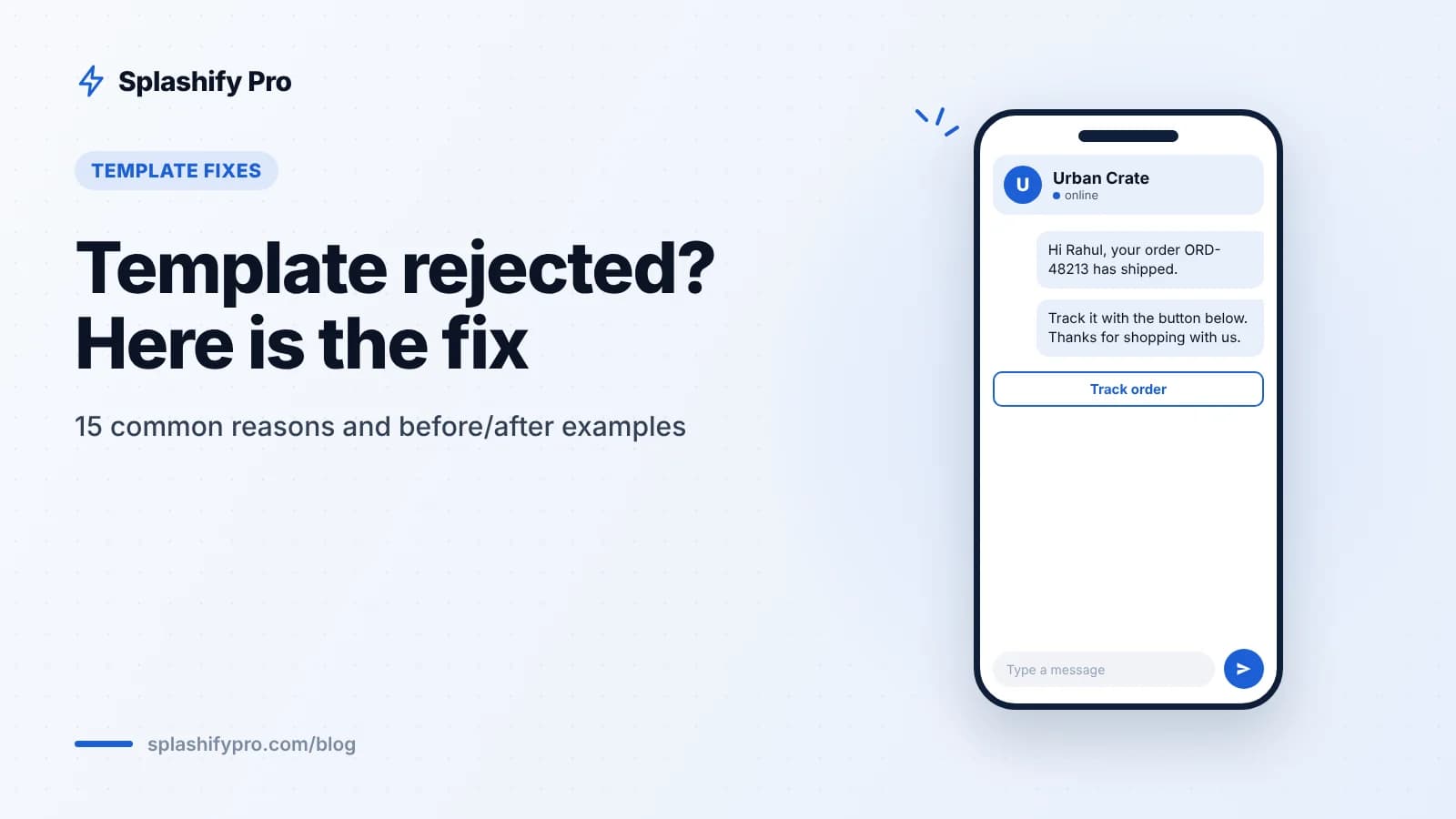
You wrote a WhatsApp template, submitted it and got back a single word: Rejected. It is frustrating, especially when a campaign or an OTP launch is waiting on it. The good news is that most rejections come from a short list of repeat mistakes, and almost all of them take a few minutes to fix.
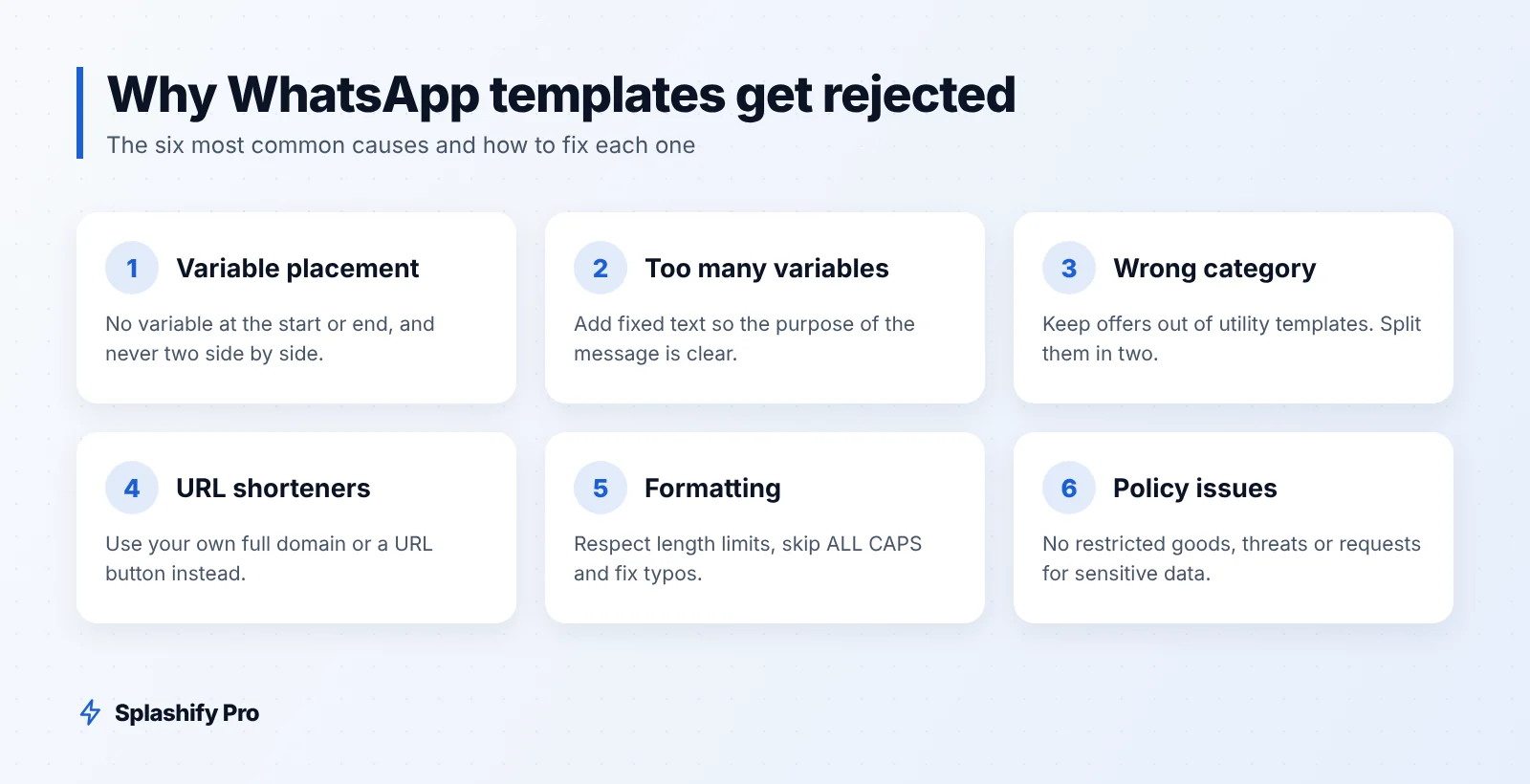
How template approval works
Every template you send through the WhatsApp Business API is checked by Meta against its formatting rules and the WhatsApp Business and Commerce Policies before you can use it. Most templates are approved within 24 hours. If a template is rejected, you can edit and resubmit it, or create a new one with a different name. For a refresher on template types and structure, see our WhatsApp template examples.
15 common reasons and how to fix them
1. Variable at the start or end of the message
A body cannot begin or end with a variable.
Before: {{1}}, your order has shipped. Track it here: {{2}}
After: Hi {{1}}, your order has shipped. Track it here: {{2}}. Thank you for shopping with us.
2. Two variables next to each other
Before: Your appointment is on {{1}} {{2}}.
After: Your appointment is on {{1}} at {{2}}.
3. Too many variables, too little text
A template that is mostly placeholders looks like it could be used to send anything. Add fixed text that explains the purpose.
Before: Hi {{1}}, {{2}} for {{3}} on {{4}}.
After: Hi {{1}}, your payment of ₹{{2}} for invoice {{3}} is due on {{4}}. Please pay before the due date to avoid late fees.
4. Variables out of order or skipped
Number variables in sequence: {{1}}, {{2}}, {{3}}. Do not jump from {{1}} to {{3}}.
5. Badly formatted placeholders
Single braces, spaces or unsupported characters break the template. Use the exact format your template editor expects, such as {{1}}, and never {1}, {{ 1 }} or [name].
6. Missing or unrealistic sample values
Meta reviews your sample values to understand what the variables will contain. Give real-looking examples ("Rahul", "ORD-48213", "₹1,499"), not "test" or "abc".
7. Category mismatch
Utility templates must relate to a specific transaction or account the user already has. Promotional wording in a utility template is the most common category problem.
Before (submitted as utility): Your order {{1}} is confirmed. Use code EXTRA20 for 20% off your next purchase!
After: Keep the utility template to the confirmation only, and create a separate marketing template for the offer.
Getting this right also matters for cost: in India from October 2026, utility messages cost ₹0.115 and marketing ₹0.8631 per delivered message, before GST. See our 2026 pricing guide.
8. Custom text in an authentication template
Authentication templates use Meta's preset wording for one-time passcodes, with options such as an expiry note and a copy-code button. Adding links, promotions or your own sentences gets them rejected. Our WhatsApp OTP guide covers the correct format.
9. Vague or generic content
Before: Hello {{1}}, we have an update for you.
After: Hello {{1}}, your service request {{2}} has been resolved. Reply to this message if you still need help.
10. Asking for sensitive information
Do not ask users to send full card numbers, CVV, passwords, OTPs, Aadhaar or PAN numbers in a reply. Point them to a secure page instead.
11. URL shorteners
Shortened links hide the destination and are a common reason for rejection.
Before: Track your order: bit.ly/3xYz
After: Use a URL button with your own domain, for example https://yourbrand.in/track/{{1}}.
12. Broken or badly built dynamic URLs
In a URL button, the variable can only be added at the end of the link. Make sure the base domain is live and belongs to your business.
13. Formatting and length problems
Body text over 1,024 characters, or a header or footer over 60 characters.
Excessive emojis, ALL CAPS, or many blank lines in a row.
Spelling and grammar errors, which make a template look like spam.
14. Wrong language selected
If the template is written in Hindi, submit it as Hindi, not English. Hinglish should be submitted under the language that matches most of the text. Create one template per language rather than mixing several in one.
15. Content that breaks WhatsApp policy
Templates promoting restricted goods or services under the WhatsApp Commerce Policy (for example tobacco, alcohol, weapons or real-money gambling), threatening debt-collection language or misleading claims will be rejected. For payment reminders, stay factual and polite.
Before: FINAL WARNING. Pay now or legal action will be taken today.
After: Hi {{1}}, a payment of ₹{{2}} is overdue since {{3}}. Please pay using the button below, or reply if you need help.
Quick fix checklist
Problem | Quick fix |
|---|---|
Variable at start or end | Add text before and after it |
Adjacent variables | Put words between them |
Too many variables | Add fixed, descriptive text |
Weak sample values | Use realistic examples |
Promo in utility | Split into utility + marketing templates |
Custom auth text | Use Meta's preset OTP format |
Shortened links | Use your own full domain |
Wrong language | Match the selected language to the text |
Policy issues | Remove restricted or threatening content |
What to do after a rejection
Read the rejection reason shown in your template manager.
Check the template against the 15 points above.
Edit and resubmit, or create a fresh template with a new name.
If you believe the decision is wrong, you can request a review from Meta.
Approved templates can still be paused later if users block or report them, which affects your quality rating. Read messaging limits and quality rating to stay safe after approval.
Frequently asked questions
How long does template approval take?
Most templates are approved within 24 hours. Some take longer, especially during busy sale periods, so submit festive and sale templates early.
Can I edit an approved template?
Meta allows limited edits to approved templates, which go through review again. For big changes, creating a new template is usually simpler.
Can Meta change my template's category?
Yes. If the content does not match the category you chose, Meta may recategorise it, for example from utility to marketing, which changes the price.
Why was my Black Friday template rejected?
Usually for formatting, shortened links or vague content. Check our Black Friday template examples for formats you can adapt.
The bottom line
Template rejections are almost always fixable: clean up your variables, match the category to the content, use your own links and stay within policy. Splashify Pro's template manager shows each template's status and rejection reason in one place, so you can fix and resubmit quickly. Plans start from ₹999/month + GST. Start your 7-day free trial or book a demo and our team will review your templates with you. Questions? Write to [email protected].
- #template approval
- #template category
- #whatsapp business api
- #whatsapp message templates
- #whatsapp template rejected