
WhatsApp MCP server for AI assistants
Manage your WhatsApp business from your AI assistant
- Works on the 14-day free trial
- You approve each assistant
- Remove it any time
Works with
 Claude
 ChatGPT
- Claude Code
 Cursor
- VS Code
 Gemini CLI
 Devin Desktop (formerly Windsurf)
- Other MCP apps with sign-in
Names and logos belong to their owners. They show only that the connector works with these apps. These companies do not make or endorse Splashify Pro.
This is for your own AI assistant. Want an AI agent that replies to your customers on WhatsApp?
See AI agents and chatbotsWhat you can ask
Ask in plain words. Get it done.
Never miss a lead
You ask
Show my unread WhatsApp chats from today.
What happens
It lists who wrote, what they asked and who on your team has the chat.
Reply in seconds
You ask
Reply to Asha: your order ships today.
What happens
It shows the reply and sends it when you say yes. If she has not written in the last 24 hours, it offers an approved template instead.
Run campaigns by chat
You ask
Send the Diwali offer again to everyone who did not read it.
What happens
It works out how many people that is and the cost, asks you to confirm, then starts the broadcast.
Answers from your data
You ask
Which template had the best read rate in the last 30 days?
What happens
It reads your template results and answers with the numbers.
New templates
You ask
Create a utility template that tells customers their order has shipped, with the order number as a variable.
What happens
It writes the template and sends it for review. Ask later which templates are still in review.
Know your numbers
You ask
What is my wallet balance, and when does my plan end?
What happens
It reads your wallet and plan and answers in one line.
Connect
Connect Claude or ChatGPT in three steps
Connector link
https://mcp.splashifypro.com/mcpYou need to be the account owner. Every plan on our pricing page works.
Step 1: Add the link in your assistant
Add it as a custom connector or MCP server. No API key, Client ID or code is needed. If an app asks for one, leave it empty.
Step 2: Sign in and click Allow
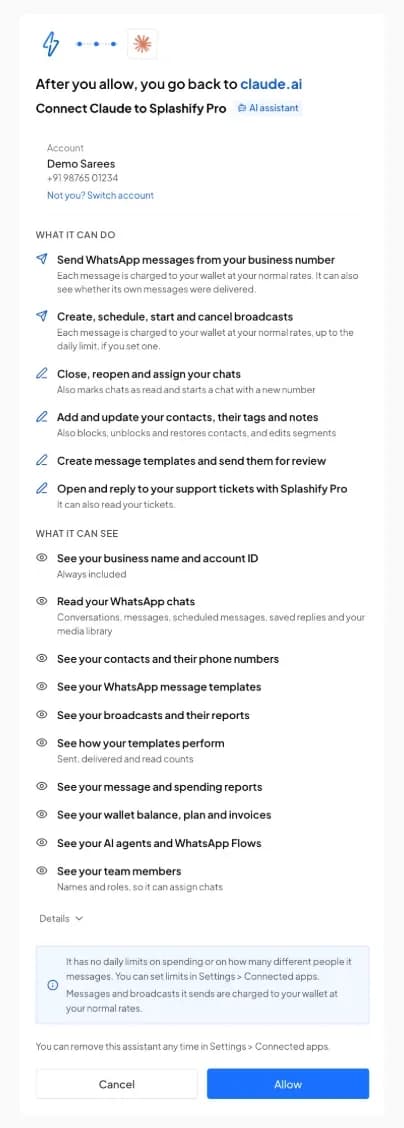
Sign in as the account owner. Check that the page says you go back to your assistant, for example claude.ai. Then click Allow.
Step 3: Ask in plain words
Try: "Which Splashify Pro account am I connected to?" Then ask for your unread chats.
In Claude
- Open Customize, then Connectors.
- Click + Add, then Add custom connector.
- Name it Splashify Pro, paste the link, click Continue, then Add.
- Sign in and click Allow. In a chat, open + and Connectors, and turn on Splashify Pro.
In ChatGPT
- Turn on Developer mode in Settings, Security and login. It needs a paid ChatGPT plan.
- Open Plugins and click +.
- Name it Splashify Pro, paste the link and choose OAuth.
- Sign in and click Allow. In a new chat, pick Splashify Pro from the tools menu.
Apps rename their menus often. If a name is different, look for Connectors, Apps, Tools or MCP in the app's settings.
Only click Allow on a page you opened from your own assistant. Never allow a link someone sent you.
Safety and control
You stay in control
You approve it
You see everything before you click Allow
- All or nothing: it gets only what the page lists
- We email the owner every time an assistant is connected
- An assistant we have not checked can only read
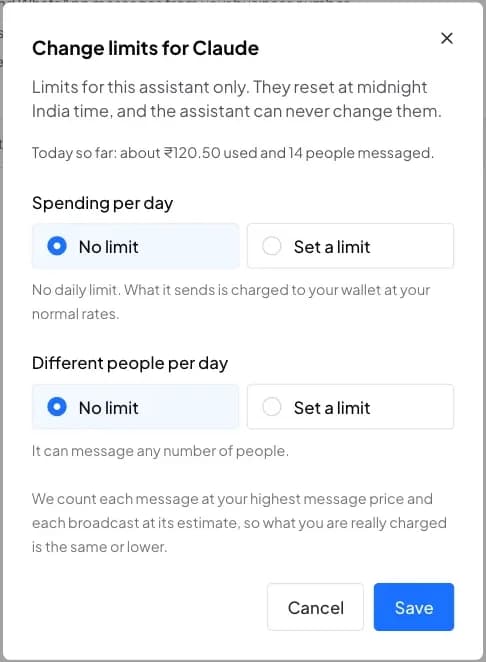
Daily limits
Set daily limits if you want them
- Limits reset at midnight India time
- See today's spend and people for each assistant
- Your wallet balance and account limits still apply
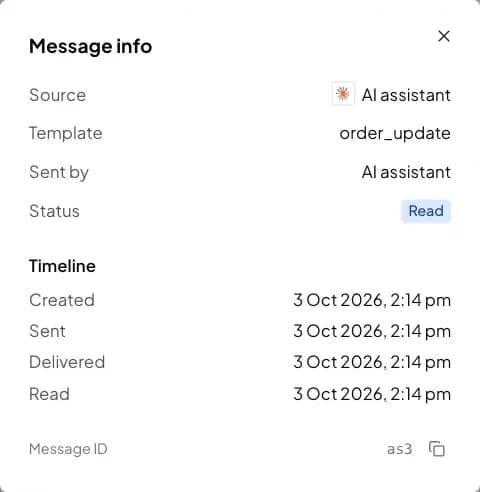
See what it did
Messages it sends are labelled
- Message info shows the source: AI assistant
- Connecting, removing and limit changes are logged too
- Report an assistant from Connected apps
Built for safety
More ways you stay in control
Only the owner can connect
Team members and our support staff cannot connect an assistant to your account.Cost before every new broadcast
Before it creates a broadcast or sends one again, it must show the people and the estimated cost, and ask you to confirm they agreed to get messages.No surprise audience
If a broadcast it scheduled finds more than 5% more people at send time, it is not sent and not charged.Remove it any time
Remove it in Settings, Connected apps. It loses access at once, and its scheduled broadcasts and messages are cancelled.Unknown assistants can only read
An assistant we have not checked can only read your reports, templates, broadcasts and wallet.It cannot delete or recharge
It cannot delete contacts, templates or your account, change your team or settings, recharge your wallet or change your plan. It spends from your wallet only for the messages it sends.
Pricing
No extra fee for the connector
The connector is free
There is no fee to connect an assistant and no charge for reading your data.Messages cost the same
Messages and broadcasts it sends are charged to your wallet at your normal rates, the same as sending from the app.Needs a plan with API access
Every plan on our pricing page includes API access. Plan features still apply: what your plan does not include stays locked for the assistant too. It also works during the 14-day free trial.
For developers
Set it up in Claude Code, Cursor or VS Code
claude mcp add --transport http splashify-pro https://mcp.splashifypro.com/mcp
# Then start Claude Code, type /mcp, pick splashify-pro and sign in.{
"mcpServers": {
"splashify-pro": {
"url": "https://mcp.splashifypro.com/mcp"
}
}
}{
"servers": {
"splashify-pro": {
"type": "http",
"url": "https://mcp.splashifypro.com/mcp"
}
}
}Cursor: put it in ~/.cursor/mcp.json and use Agent mode. VS Code: put it in .vscode/mcp.json, click Start, and use Agent mode in Copilot Chat. Gemini CLI and Devin Desktop steps are in the setup guide.
Any app that supports remote MCP servers over Streamable HTTP with OAuth sign-in can connect. Apps that only support SSE or API keys cannot.
Setup guide for every assistant
Claude, ChatGPT, Claude Code, Cursor, VS Code, Gemini CLI and Devin Desktop, step by step.Build an app many businesses connect
Connect with Splashify Pro lets customers connect your own app with one click.
Business account, not a personal number
Built on Meta's WhatsApp Business Platform
| Splashify Pro connector | Personal WhatsApp tools | |
|---|---|---|
| How it connects | Your Splashify Pro account on Meta's WhatsApp Business Platform | WhatsApp Web on a personal number |
| Your number | Your business number | Your personal number |
| Templates approved by Meta | Yes | No |
Questions about AI assistants
The guide has the steps for every assistant.
It lets your AI assistant, like Claude or ChatGPT, work in your Splashify Pro WhatsApp account: your chats, contacts, templates, broadcasts and reports. Add one link, sign in to Splashify Pro and click Allow. Technically, it is a remote WhatsApp MCP server at https://mcp.splashifypro.com/mcp. MCP is an open standard that lets AI assistants connect to other apps. It works with your WhatsApp Business account in Splashify Pro, not with a personal WhatsApp number.
No. In Claude or ChatGPT you paste one link in the settings and sign in. You do not need an API key, a Client ID or a developer account.
Claude on the web, desktop and mobile, ChatGPT in developer mode on paid plans, Claude Code, Cursor, VS Code with Copilot Chat, Gemini CLI and Devin Desktop (formerly Windsurf). Any other app that can add a remote MCP server with OAuth sign-in can connect too. An assistant we have not checked starts with read-only access.
No. The connector is free. Messages and broadcasts your assistant sends are charged to your wallet at your normal rates, the same as in the app. You need a plan with API access, and every plan on our pricing page includes it. It also works during the 14-day free trial.
We tell every assistant to show what it will send, to whom and the cost, and to wait for your yes. Before it creates a broadcast or sends one again, it must show the people and the estimated cost and ask you to confirm. Your assistant app may also ask before it runs a send. Messages from your customers are treated as data, not as instructions, but a clever message can still trick an assistant, so read what it plans to send before you say yes. For extra safety, set a daily spending limit in Settings, Connected apps.
Yes. For each assistant you can set a daily spending limit and a limit on how many different people it messages each day. There is no limit until you set one. Set either to 0 and it can still read and organise, but cannot send. Only you can change these limits, in Settings, Connected apps. Every assistant also has fixed limits, such as 60 messages a minute and 10 broadcasts an hour.
No. Only the account owner can connect an AI assistant. Team members and accounts managed by a reseller cannot. In Claude Team or Enterprise, each person connects their own Splashify Pro account.
No. You sign in on Splashify Pro's own page, not inside the assistant, so it never sees your password. Each connection works only in the one account that allowed it. Whether your chats are used to train AI models depends on your assistant's own settings, so check its privacy settings.
Open Settings, then Connected apps, and click Remove. It loses access at once. Broadcasts and scheduled messages it created that have not gone out are cancelled and not charged. What it already sent stays. Removing it only inside the assistant app may not end its access, so remove it in Splashify Pro.
Not yet. Today the connector works with WhatsApp in Splashify Pro accounts at app.splashifypro.com. It does not work with Splashify Pro Email accounts, SMS, RCS or Instagram.
No. Many WhatsApp MCP servers on GitHub log in through WhatsApp Web on a personal number, and they cannot send templates approved by Meta. The Splashify Pro connector works on your WhatsApp Business account in Splashify Pro, on Meta's WhatsApp Business Platform, with your business number and your approved templates.
The guide has the steps for every assistant.
Your WhatsApp business, one question away.
- 14-day free trial
- No credit card
- Setup help on WhatsApp