Typing is friction. Every time a customer has to type “I want to track my order” or “what are your prices for 2BHK?”, some of them simply don't. Interactive messages remove that friction by letting customers reply with a tap — choosing a button, picking from a menu, swiping a carousel or filling a native form.
Businesses that switch from text-only bots to interactive messages typically see much higher response and completion rates. Here's every interactive format available on the WhatsApp Business API, with limits and examples.
Two contexts: session vs template
Interactive formats work in two ways:
- Session (free-form) interactive messages — reply buttons, list messages, CTA URL buttons, product messages, location requests and Flows — can be sent within 24 hours of the customer's last message.
- Template messages — used to start conversations — can include quick-reply buttons, call-to-action buttons (URL, phone, copy code), carousels and Flow buttons, and must be approved first. See our template guide.
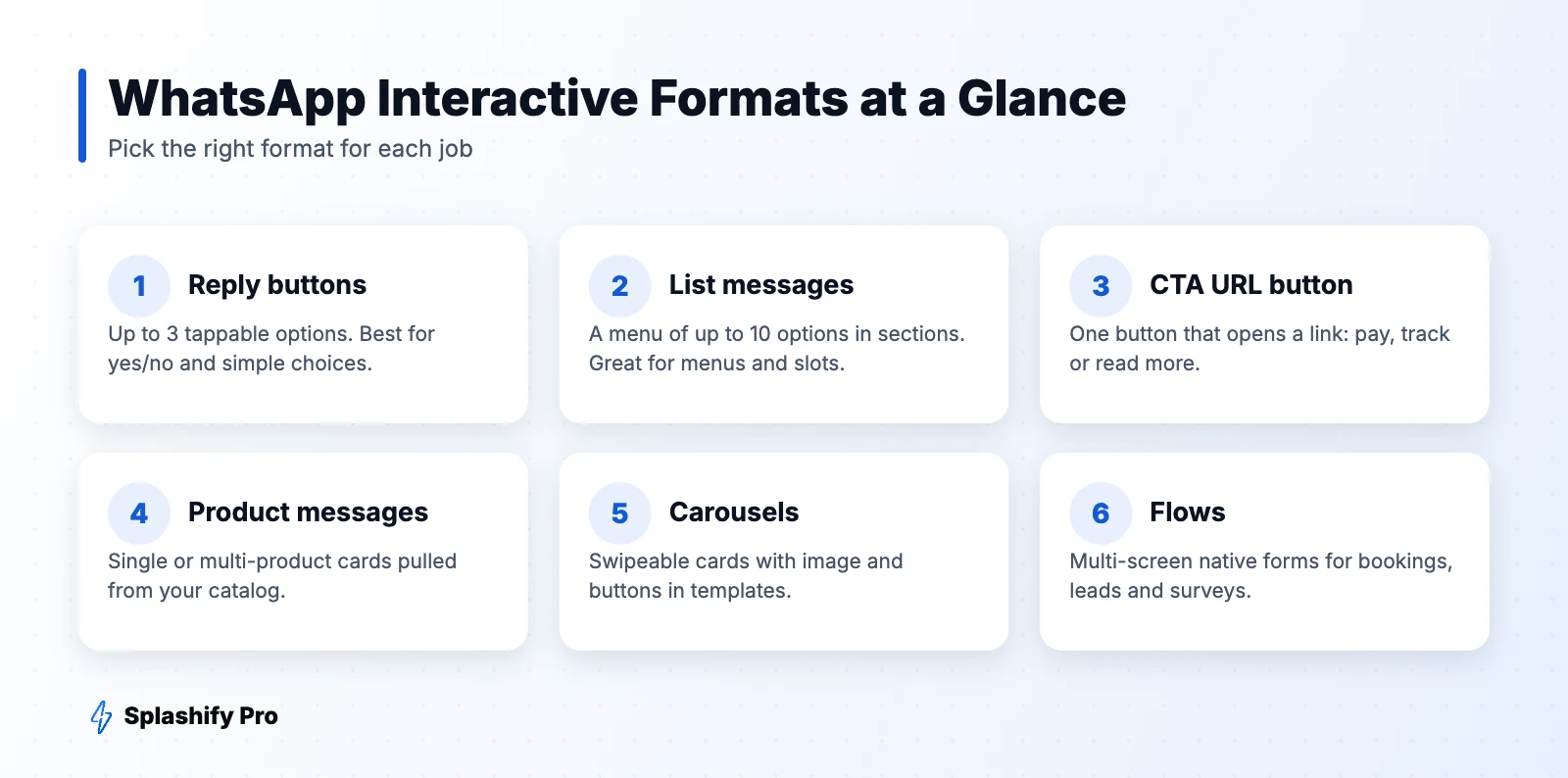
1. Reply buttons
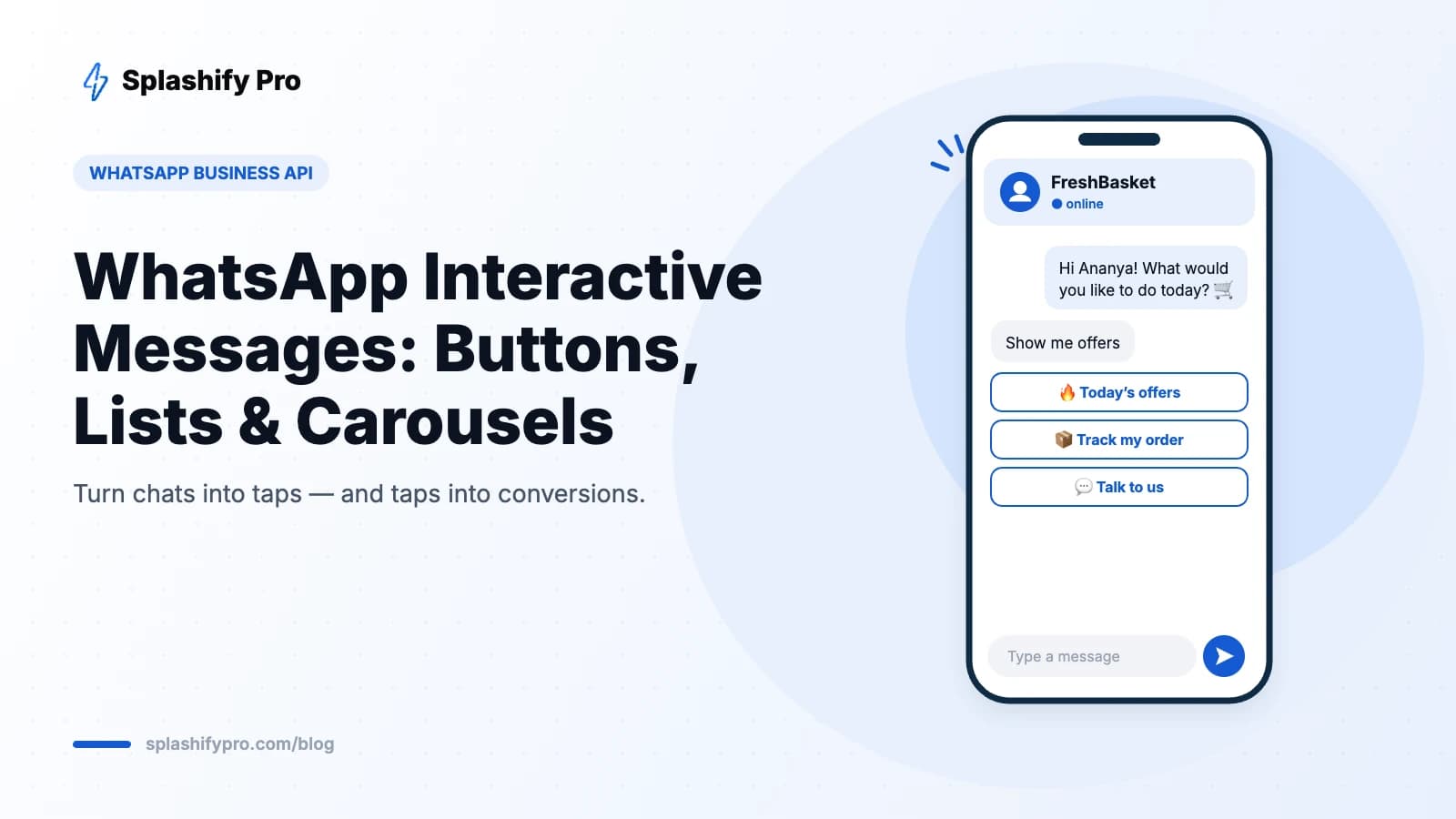
Up to three buttons under a message, each with a short title (up to 20 characters). When tapped, the button text is sent back as the customer's reply and your bot receives its ID.
Best for: yes/no confirmations, COD confirmation, choosing between two or three paths. Example: “Confirm your appointment for Saturday 11 am?” [Confirm] [Reschedule] [Cancel]
2. List messages
A single “menu” button that opens a list of up to 10 rows, grouped into sections, each with a title and optional description.
Best for: main menus, product categories, appointment slots, branch selection, FAQs. Example: “Choose a time slot” → Morning: 10:00, 11:00 · Afternoon: 2:00, 3:00 · Evening: 6:00.
3. Call-to-action (CTA) URL button
A message with one button that opens a URL, so you don't have to paste raw links. Best for: payment links, order tracking, booking pages, documents.
4. Product messages
If you've connected a catalog, you can send a single-product message or a multi-product message (up to 30 items in sections). Customers can view details, add to cart and send the order in chat. See our guide to selling on WhatsApp.
5. Carousel templates
Carousel templates show up to 10 horizontally scrollable cards, each with an image or video, body text and buttons. Because they're templates, you can use them to start conversations — ideal for new arrivals, festive offers or property listings.
6. WhatsApp Flows
WhatsApp Flows open a native, multi-screen form inside the chat with text fields, dropdowns, date pickers and checkboxes. Best for: lead capture, appointment booking, surveys, returns and signups.
7. Location request and location messages
Ask customers to share their location with one tap (for delivery or nearest-branch lookup), or send your store location as a map pin.
Which format should you use?
| Goal | Best format |
|---|---|
| Simple choice (2–3 options) | Reply buttons |
| Menu with 4–10 options | List message |
| Send people to a link | CTA URL button |
| Showcase products | Multi-product message or carousel |
| Start a campaign with visuals | Carousel template |
| Collect several details | WhatsApp Flow |
| Delivery or nearest store | Location request |
Example: an interactive support bot
- Welcome message with a list: Track order · Returns · Payments · Store locations · Talk to us.
- “Track order” → asks for order ID → replies with status and a CTA button to the tracking page.
- “Returns” → opens a Flow for order ID, reason and pickup slot.
- “Store locations” → location request → sends the nearest store pin.
- Every path ends with reply buttons: [Solved 👍] [Talk to an agent].
Build this without code in Splashify Pro's chatbot builder — see our chatbot guide.
Best practices
- Keep labels short and clear. “Track order” beats “Click here to check order status”.
- Use emojis sparingly as visual anchors in lists and buttons.
- Always offer a way out — a “Talk to us” or “Main menu” option.
- Don't stack too many steps. Three or four taps to an answer is the target.
- Handle typed replies too. Some users will type instead of tapping; use keywords or AI to understand them.
- Track taps per option to learn what customers want most.
Frequently asked questions
Can I send interactive buttons to anyone?
Session interactive messages can only be sent within 24 hours of the customer's last message. To start a conversation, use an approved template with buttons or a carousel.
How many buttons can a WhatsApp message have?
Session reply-button messages support up to three buttons. List messages support up to 10 rows. Templates can carry up to 10 buttons in total, depending on type.
Do interactive messages cost extra?
No. They're billed like any other message of the same category.
Can I use interactive messages with the WhatsApp Business app?
Lists, reply buttons, carousels and Flows are WhatsApp Business API features. The app has quick replies and catalogs but not the full interactive set.
The bottom line
Interactive messages are the easiest upgrade you can make to any WhatsApp journey: fewer typed replies, faster answers and higher conversion. Start with a list-based main menu and reply buttons at decision points, then add carousels and Flows. Build interactive WhatsApp journeys in Splashify Pro.
- #whatsapp buttons
- #whatsapp carousel
- #whatsapp interactive messages
- #whatsapp list message