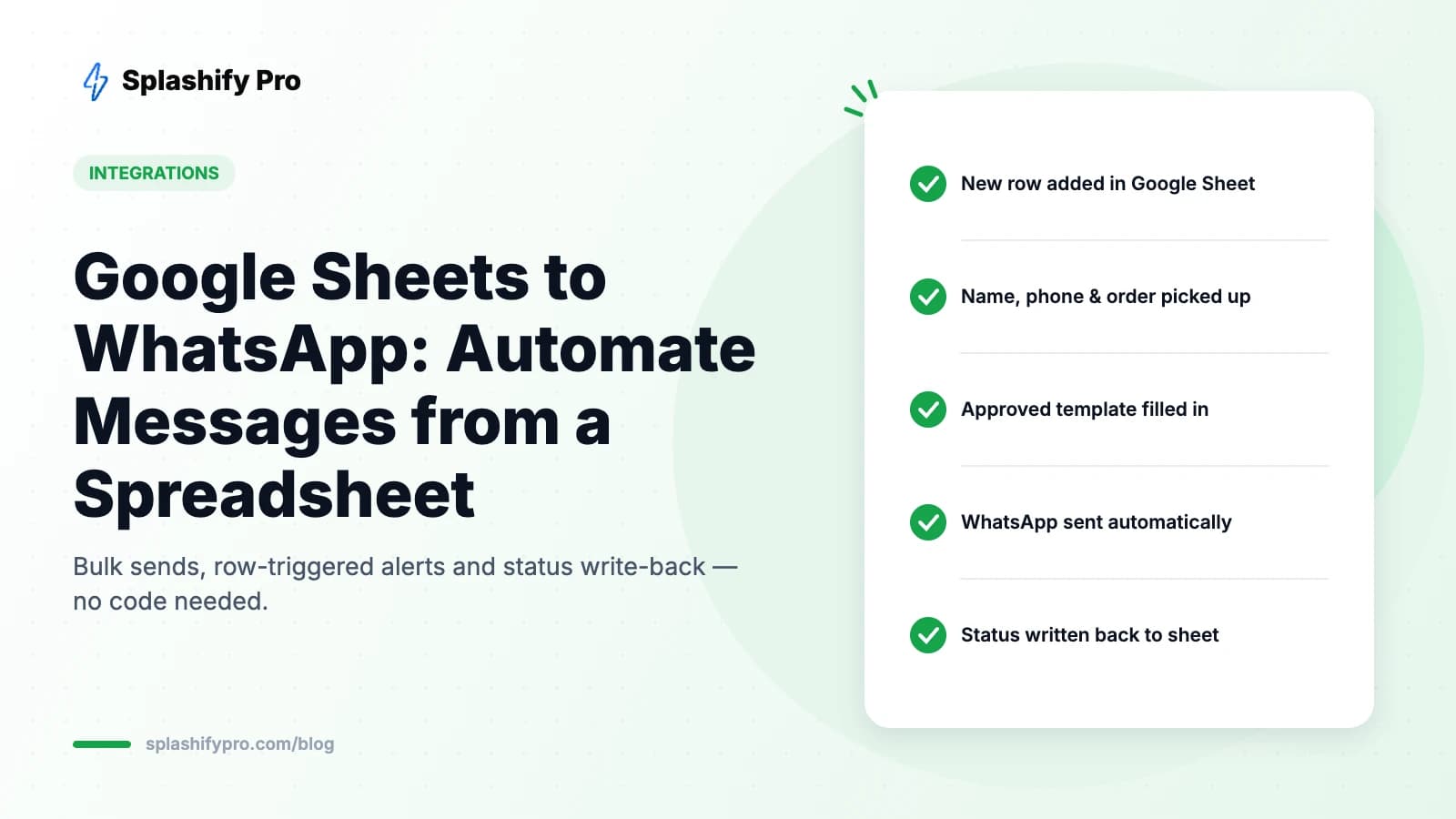
A surprising number of Indian businesses run on Google Sheets: lead lists from ads, daily order sheets, fee registers, appointment logs, payment trackers. And then someone sits copying phone numbers into WhatsApp one by one to send updates. It's slow, error-prone, and impossible to scale.
The good news: you can send WhatsApp messages directly from Google Sheets — either in bulk or automatically whenever a row changes. Here are three methods, from simplest to most flexible.
Before you start: what you need
- WhatsApp Business API access through a provider like Splashify Pro. The regular WhatsApp app can't be automated safely — unofficial “bulk sender” extensions risk getting your number banned.
- Approved message templates for any message sent to people who haven't messaged you in the last 24 hours. Read our template guide.
- Clean phone numbers with country code and digits only, for example
919876543210. - Opt-in from every contact in the sheet.
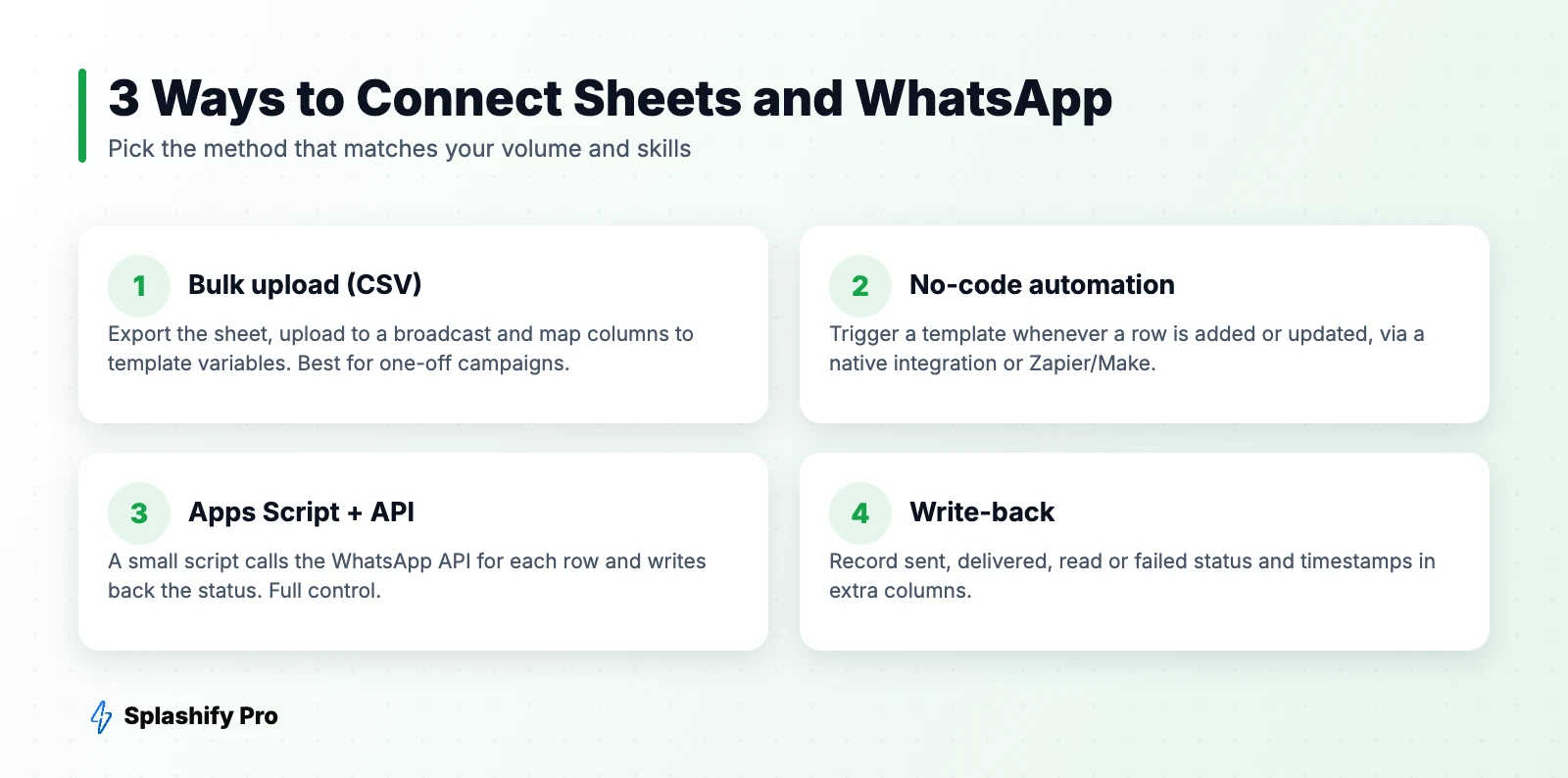
Method 1: Bulk upload a sheet as a broadcast
Best for one-off campaigns like a fee reminder to all parents or a sale announcement.
- Structure your sheet with columns such as phone, name, amount, due_date.
- Download it as CSV (File → Download → Comma-separated values).
- In Splashify Pro, create a new broadcast, choose an approved template and upload the CSV.
- Map each template variable to a column — {{1}} → name, {{2}} → amount, {{3}} → due_date.
- Preview the cost and send now or schedule.
See our broadcast guide for best practices on segmenting and timing.
Method 2: No-code automation on new or updated rows
Best for ongoing workflows — every new lead gets a welcome message, every row marked “Shipped” triggers a shipping update.
- Connect Google Sheets to your WhatsApp platform with a native integration or a tool like Zapier or Make.
- Set the trigger: New row or Row updated (for example, when the Status column changes to “Confirmed”).
- Set the action: Send WhatsApp template, mapping columns to variables.
- Optionally add a step that writes the result back to the sheet.
Example workflows:
- Lead capture: Facebook lead form → Sheet → instant WhatsApp welcome with brochure.
- Orders: Status changed to “Dispatched” → shipping update with tracking link.
- Appointments: New booking row → confirmation; a scheduled run sends reminders the day before.
- Payments: Due date is tomorrow and Paid = No → payment reminder with UPI link.
Method 3: Google Apps Script with the WhatsApp API
Best if you want full control without a third-party automation tool. Apps Script runs inside Google Sheets and can call any HTTP API. A simplified example that sends a template to every row where Status is blank, then marks it sent:
function sendWhatsApp() {
  const sheet = SpreadsheetApp.getActiveSheet();
  const rows = sheet.getDataRange().getValues();
  for (let i = 1; i < rows.length; i++) {
    const [phone, name, amount, dueDate, status] = rows[i];
    if (status) continue;
    const payload = {
      to: String(phone),
      template: 'payment_reminder',
      language: 'en',
      variables: [name, amount, dueDate]
    };
    const res = UrlFetchApp.fetch('YOUR_PROVIDER_SEND_TEMPLATE_URL', {
      method: 'post',
      contentType: 'application/json',
      headers: { Authorization: 'Bearer ' + PropertiesService.getScriptProperties().getProperty('API_KEY') },
      payload: JSON.stringify(payload),
      muteHttpExceptions: true
    });
    sheet.getRange(i + 1, 5).setValue(res.getResponseCode() === 200 ? 'Sent' : 'Failed');
  }
}
Replace the URL and payload with your provider's send-template endpoint (Splashify Pro's API reference lists the exact format). Store your API key in Script Properties — never paste it into a cell. Then add a time-driven trigger (Triggers → Add trigger) to run it every hour or every morning.
Tips for reliable sheet automations
- Validate numbers with a formula column that strips spaces and adds 91 where missing.
- Add a status column so the same row never gets messaged twice.
- Throttle large sends and stay within your messaging limit.
- Log failures with the error reason so you can fix bad numbers.
- Protect the sheet — restrict edit access to the columns that trigger messages.
When to move beyond Sheets
Sheets is perfect to start. As volume grows, you'll want contact histories, a shared inbox for replies, segments and reporting — which is where a WhatsApp CRM helps. Read our WhatsApp CRM guide.
Frequently asked questions
Can I send WhatsApp messages from Google Sheets for free?
The integration itself can be free (CSV upload or Apps Script), but template messages are charged by Meta per delivered message.
Can I send bulk WhatsApp messages from Excel?
Yes — save the Excel file as CSV and upload it to a broadcast, exactly like Method 1.
Will customers' replies come back to the sheet?
Replies arrive in your WhatsApp inbox. With webhooks or automation tools you can also write replies or button clicks back to the sheet.
The bottom line
Start with a CSV broadcast, graduate to row-triggered automations, and use Apps Script when you need full control. Connect your Google Sheets to WhatsApp with Splashify Pro and stop copy-pasting numbers.
- #google sheets to whatsapp
- #send whatsapp from google sheets
- #whatsapp automation google sheets
- #whatsapp bulk message excel