Sending one message to hundreds of customers at once is exactly what WhatsApp broadcasts are for — festival offers, product launches, order updates, reminders. The catch? Do it the wrong way and WhatsApp can ban your number, often permanently. This guide shows you how to send broadcasts the right way, on both the free app and the API, and how to keep your account safe.
What is a WhatsApp broadcast?
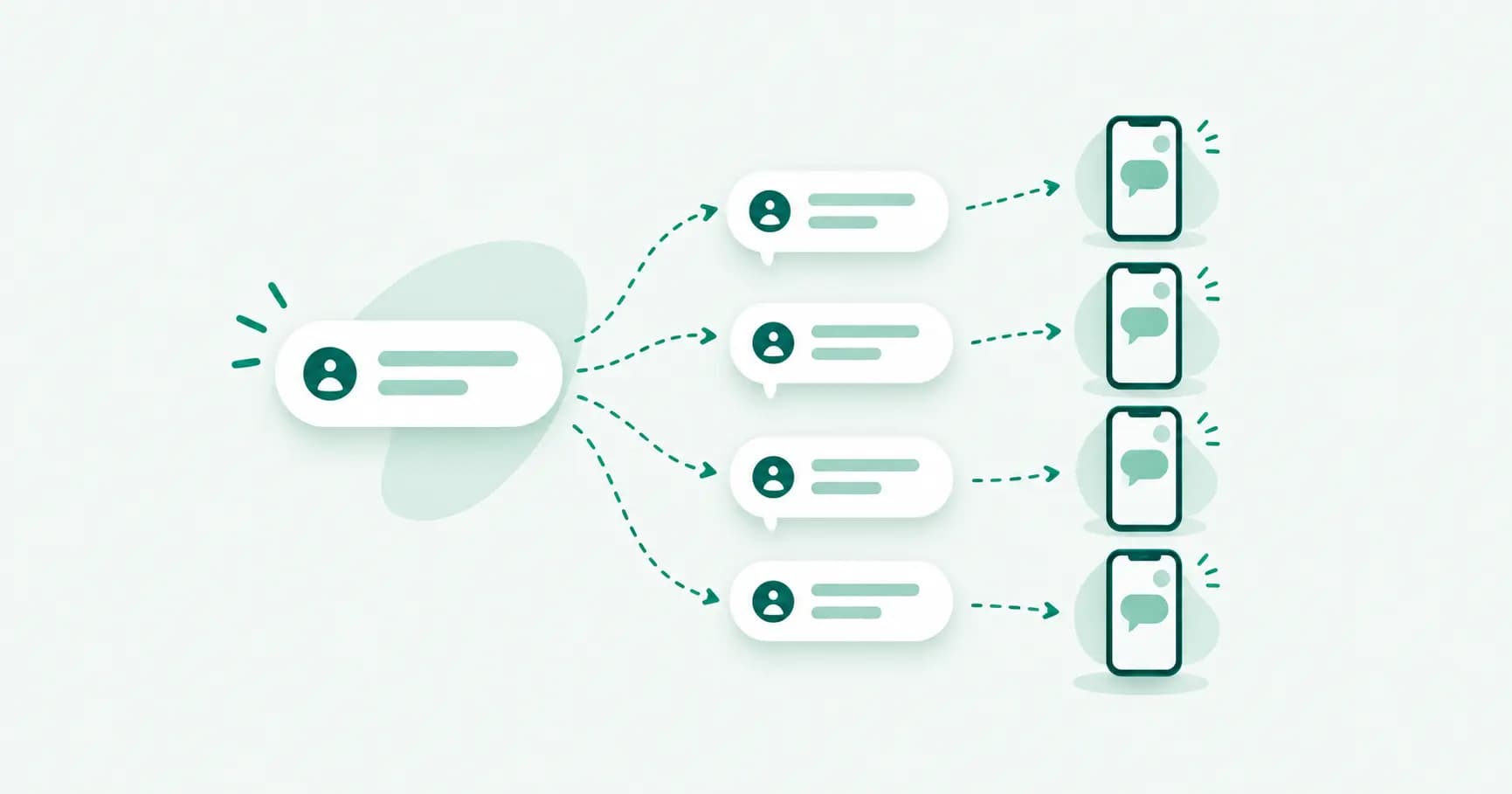
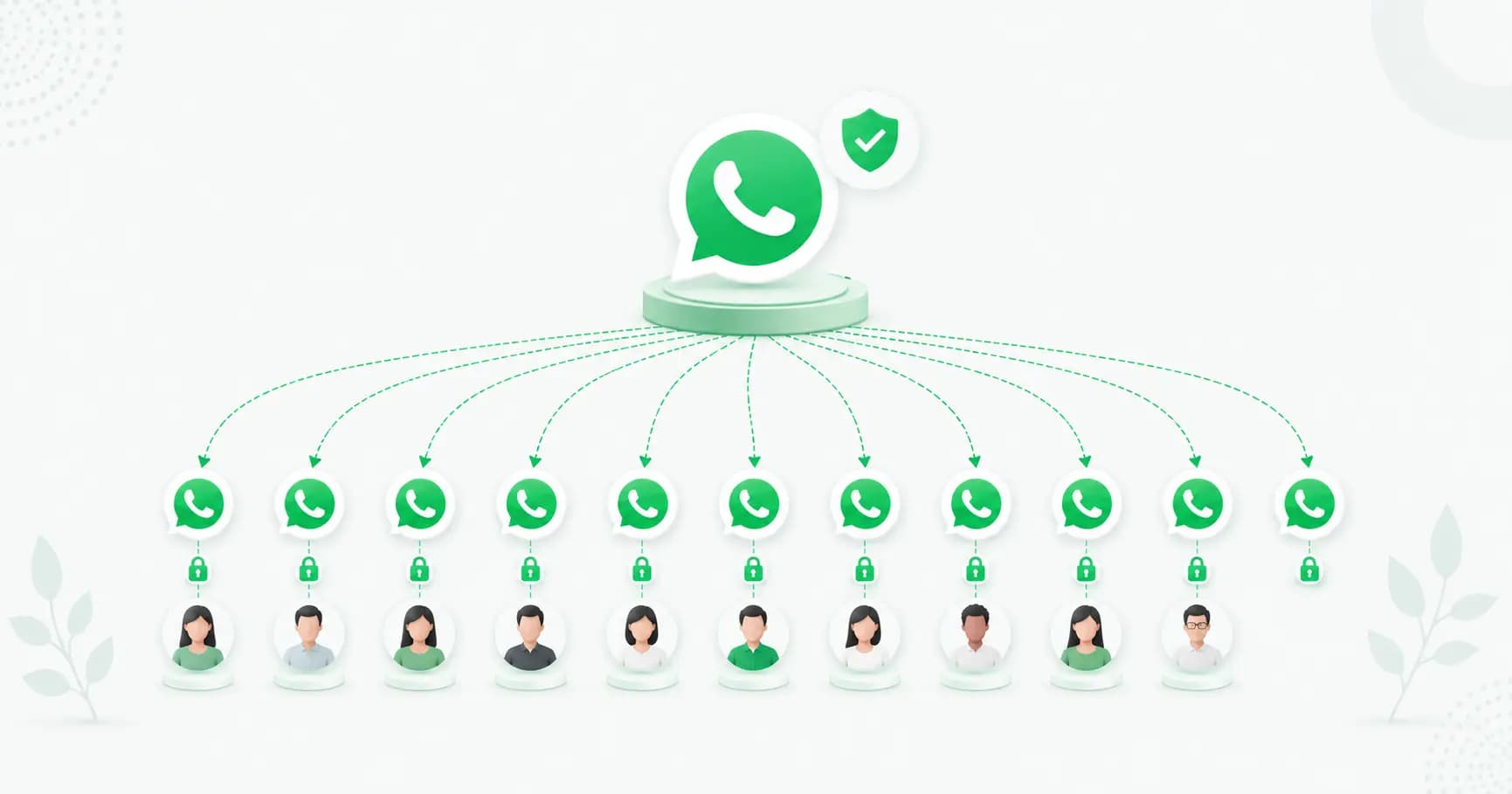
A WhatsApp broadcast sends the same message to many recipients at once — but each person receives it as a private, one-to-one chat. They don't see each other, and their replies come back to you privately. That's the key difference from a group, where everyone sees everyone.
There are two ways to broadcast, and the difference matters enormously.
The two ways to broadcast (and their limits)
1. The WhatsApp Business app — broadcast lists. Free and built in, but heavily limited:
- A broadcast list can hold a maximum of 256 recipients.
- Crucially, your message only reaches people who have saved your number in their contacts. If they haven't, they never get it.
- No automation, no personalisation at scale, no analytics.
This works for a solo business messaging a small, saved contact list — and nothing bigger.
2. The WhatsApp Business API. Built for real broadcasting:
- No recipient cap — message thousands (subject to your account's messaging limits).
- Recipients don't need to have saved your number.
- Supports personalisation, segmentation, scheduling, approved templates and analytics.
- Requires customer opt-in, uses pre-approved templates, and has a per-message cost.
For any business messaging more than a couple hundred people, the API is the only viable — and safe — option.
How to send a broadcast on the WhatsApp Business app
- Open the WhatsApp Business app and tap the menu → New broadcast.
- Select the contacts to include (remember: they must have saved your number, and the list maxes out at 256).
- Type your message and send. Each recipient gets it as a private chat.
Simple, free, and fine for a small saved audience — but it won't scale, and manually messaging large lists is exactly what triggers WhatsApp's spam detection.
How to send a broadcast on the WhatsApp Business API
- Get on the WhatsApp Business API through a provider (see our complete API guide).
- Import your opted-in contacts — upload your list of customers who've agreed to receive messages (no need for them to save your number).
- Create and get a template approved — write your broadcast as a message template in the right category (marketing, utility or authentication) and submit it for Meta's approval.
- Segment your audience — target the right customers by interest, location, past purchase or stage, rather than blasting everyone.
- Send or schedule the broadcast to your chosen segment.
- Track results — monitor delivery, read and reply rates, and refine.
Why WhatsApp bans broadcasters (and how to avoid it)
This is the part that saves your number. WhatsApp actively detects and restricts spammy broadcasting. The most common reasons accounts get banned:
- Using unofficial bulk-sender tools. Chrome extensions and "unlimited WhatsApp sender" apps violate WhatsApp's terms and get numbers permanently banned, often within days. (More in our guide to the best bulk WhatsApp sender.)
- Messaging people without opt-in. Too many blocks and reports tank your quality rating and trigger restrictions.
- Sending too much, too fast from a new number. New numbers have low limits and need to warm up gradually.
- Mislabelling template categories — dressing up marketing as utility to save money hurts your quality rating.
How to broadcast safely:
- Use the official WhatsApp Business API, never unofficial tools.
- Only message customers who opted in, and make opting out easy.
- Warm up new numbers — start with smaller, engaged sends and scale gradually.
- Use the correct template category and keep content relevant and valuable.
- Monitor your quality rating and ease off if it dips.
If your number does get restricted, our guide on recovering a banned WhatsApp account walks through the appeal process.
WhatsApp broadcast limits
On the API, how many people you can message is governed by messaging tiers. New accounts start limited (often 250 or 1,000 unique customers in 24 hours) and climb the tiers — 1,000 → 10,000 → 100,000 → unlimited — as you send well and verify your business. Your quality rating (green, yellow, red) also affects your limits: keep it healthy with relevant, opted-in messaging and your capacity grows. On the free app, the hard limit is 256 saved contacts per list, full stop.
Broadcast vs group vs Channel
Quick clarification, since these get confused:
- Broadcast — one message sent privately to many; recipients don't see each other. Best for business messaging.
- Group — everyone sees everyone and can reply to all. Best for communities, not marketing.
- Channel — a public, one-way feed people choose to follow. Best for broad public updates, not targeted customer messaging.
Broadcast best practices
- Segment, don't blast. Relevant messages to the right people beat one message to everyone.
- Personalise with the customer's name and details.
- Time it well — send during waking hours, and don't over-message.
- Lead with value — an offer or useful update, not filler.
- Always include an opt-out for marketing broadcasts.
- Test and learn — try different messages and send times, and double down on what works.
How Splashify Pro makes broadcasting safe and simple
Splashify Pro lets you broadcast to unlimited opted-in customers on the official WhatsApp Business API — with audience segmentation, personalisation, scheduling, approved templates and full delivery analytics. It keeps you compliant (opt-in management, easy opt-outs, quality-rating visibility) so you scale your reach without risking your number — and with no markup on Meta's message rates at volume.
Frequently asked questions
How do I send a WhatsApp broadcast message?
On the free WhatsApp Business app, tap the menu → New broadcast, select saved contacts (up to 256), and send. For larger, safer broadcasts, use the WhatsApp Business API through a provider: import opted-in contacts, get a template approved, segment your audience, and send or schedule.
How many people can I send a WhatsApp broadcast to?
On the free Business app, a broadcast list is capped at 256 recipients, and only people who've saved your number receive it. On the WhatsApp Business API there's no fixed cap — you can message thousands, subject to your account's messaging tier and quality rating.
Will I get banned for sending WhatsApp broadcasts?
Not if you use the official WhatsApp Business API and message only opted-in customers with relevant content. Bans come from unofficial bulk-sender tools, spamming people without consent, and sending too fast from new numbers — all of which trigger blocks, reports and restrictions.
Do recipients need to save my number to get a broadcast?
On the free WhatsApp Business app, yes — broadcast list messages only reach people who've saved your number. On the WhatsApp Business API, no — you can message opted-in customers whether or not they've saved you.
What's the difference between a broadcast and a group?
A broadcast sends a private one-to-one message to many people who don't see each other, and replies come to you privately. A group is a shared conversation where everyone sees everyone. Broadcasts are for business messaging; groups are for communities.
Can I schedule WhatsApp broadcasts?
Not on the free app, but yes on the WhatsApp Business API through a platform — you can schedule broadcasts in advance, segment your audience, and automate campaigns like festival offers and reminders.
How do I broadcast to more than 256 contacts?
You need the WhatsApp Business API, which removes the 256 limit and lets you message thousands of opted-in customers at once. The free app can't do this, and unofficial tools that claim to will get your number banned.
The bottom line
WhatsApp broadcasts are one of the most powerful ways to reach customers — 96% open rates, private one-to-one delivery, at scale. The free app works for a small saved list, but real broadcasting needs the API. Whichever you use, the rule is the same: message people who opted in, keep it relevant, and never touch unofficial bulk tools. Do that, and you'll reach thousands safely — and keep your number for the long run.
Broadcast safely to unlimited opted-in customers with Splashify Pro → — segmentation, scheduling, templates and analytics on the official API. Start free for 14 days.
- #how to send whatsapp broadcast
- #whatsapp broadcast
- #whatsapp broadcast list
- #whatsapp broadcast message
- #whatsapp broadcast without getting banned
- #whatsapp bulk message