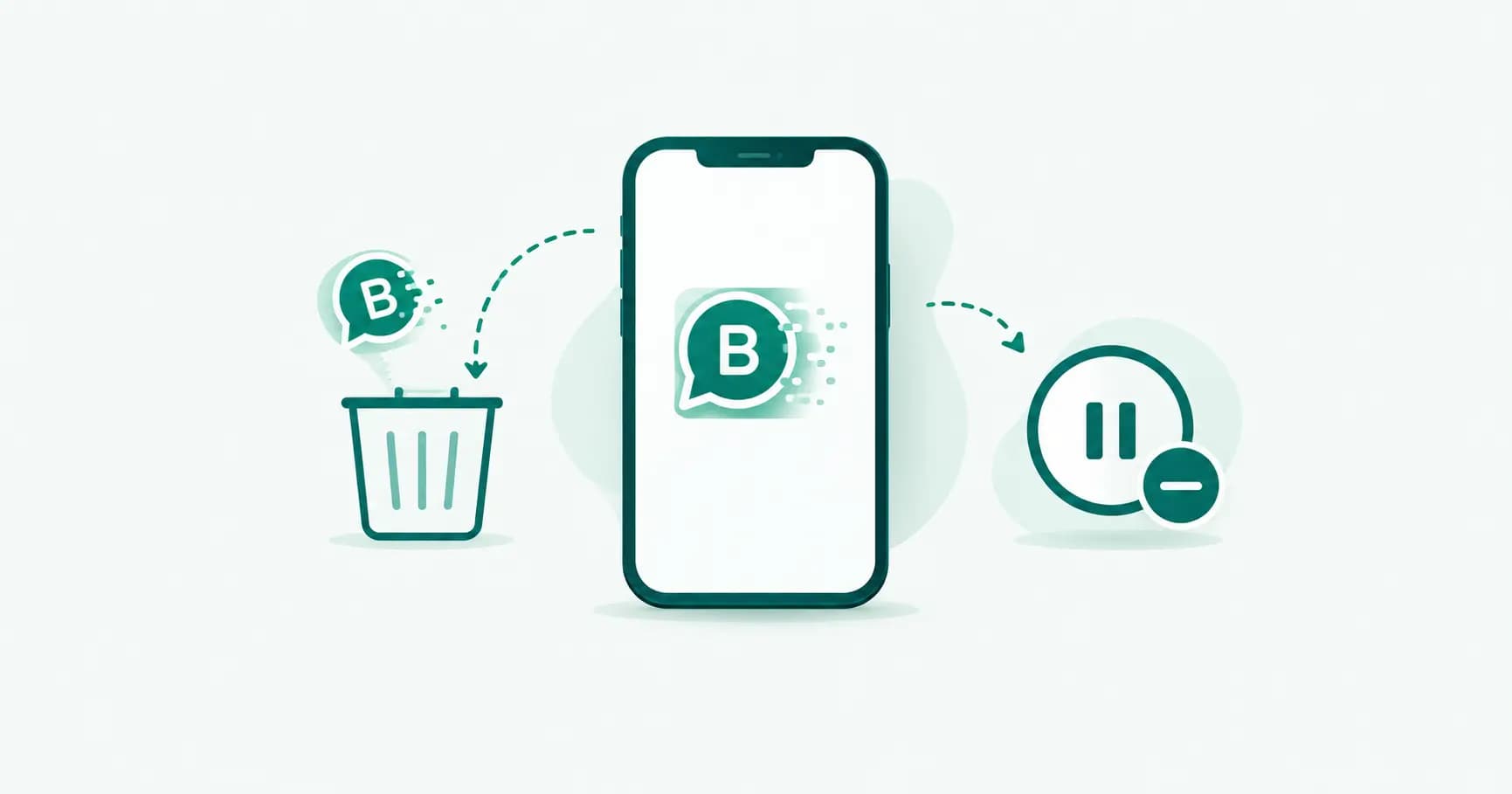
There's no "deactivate" button on WhatsApp Business the way there is on Instagram or Facebook — just delete, or simply stop using it. That single fact trips up a lot of people searching for a middle option. This guide covers what actually happens when you delete a WhatsApp Business account, the safer alternative if you're not sure, and the exact steps either way.
Delete vs "deactivate" vs uninstall: what's actually available
Three different outcomes get lumped together under "deactivate," and only one of them is a real WhatsApp feature:
Delete My Account — the only official action. Permanently removes your account, chats, profile and business data (catalog, labels, quick replies). WhatsApp's own help centre describes this as irreversible.
"Deactivating" by inactivity — there's no manual deactivate switch, but an account that simply isn't used for a long stretch gets auto-deleted after 120 days (365 days in the US) without you doing anything.
Uninstalling the app — just removes the app from your phone. Your account, number and data are untouched and pick up exactly where you left off when you reinstall. This is the safest "pause" if what you actually want is a break, not deletion.
If you're looking for a reversible pause, uninstalling is that option — not deletion.
What happens when you delete a WhatsApp Business account
Be clear-eyed about this before you proceed, because it removes more than a personal account does:
All chat history is erased — from your phone and WhatsApp's servers.
Your business profile disappears — including your catalog, labels, quick replies and greeting/away messages.
You're removed from every group you're in.
Cloud backups tied to the account (Google Drive or iCloud) are deleted.
Any pending payments or payment history linked to the account are cancelled and erased.
Your number becomes available for someone else to register on WhatsApp.
Deletion is a WhatsApp-side process: WhatsApp's help centre states it can take up to 90 days to fully complete, with your information unavailable to you on WhatsApp during that time, and residual copies possibly remaining in disaster-recovery backups after that. Once you've confirmed deletion, treat it as final — don't count on reinstalling to bring anything back.
Before you delete: back up first
There's no undo, so this step matters more than it does on almost any other app:
Open Settings → Chats → Chat backup and run a fresh backup to Google Drive or iCloud.
For any conversation you specifically need a record of, use Export chat (open the chat → menu → More → Export chat) and save it separately — this survives even after the account is gone, since it's just a file.
Note down anything not captured by chat backup: your catalog details, saved quick replies, and any customer numbers you'll want elsewhere.
See our full backup and restore guide for the detailed process.
How to delete a WhatsApp Business account
Open WhatsApp Business and go to Settings.
Tap Account → Delete my account (on some versions: Delete My Account directly under Settings).
Select your country and enter the phone number on the account, for verification.
WhatsApp asks for a reason for leaving — optional feedback, not required to proceed.
Give the final confirmation and tap Delete My Account.
That's it — the account and its data begin the deletion process described above.
Converting to a personal account instead (a middle option)
If what you actually want is to stop running the number as a business account but keep using WhatsApp on it, you don't need to delete anything — you can convert to a regular account, the reverse of the setup process:
Back up your WhatsApp Business data first (Google Drive or iCloud).
Uninstall WhatsApp Business.
Install the regular WhatsApp app from the Play Store or App Store.
Verify the same number. WhatsApp asks to confirm you understand this converts the account — business profile data (catalog, labels, quick replies) doesn't carry over to the personal app.
Choose to restore your chat backup so your conversation history comes across.
Your chats survive this; your business tools don't. This is the right move if you're closing the business side but want to keep messaging on that number.
What customers see after you delete
Once deletion completes, your business simply disappears from WhatsApp: the chat becomes unreachable, your profile and catalog are gone, and the number shows as not on WhatsApp until (if ever) it's re-registered. Customers with your number saved keep it in their contacts, but there's no notice or forwarding — anyone who doesn't already have another way to reach you loses that channel. If you're closing one number but staying reachable, tell customers where to find you before you delete, not after.
For WhatsApp Business API accounts
If your number is on the WhatsApp Business API rather than the free app, "deleting the account" usually means something different in practice: removing the phone number from your provider's platform and Meta Business Manager, not deleting a consumer-style account. If you're moving from the free app to the API on the same number, don't delete the app account first unless your migration path specifically calls for it — check with your provider, since the sequence matters and getting it wrong can mean losing chat history you didn't need to lose. (Our number migration guide covers the safe order for this.)
Frequently asked questions
Can I deactivate my WhatsApp Business account without deleting it?
Not in the way "deactivate" works on other apps. WhatsApp has no manual pause switch. Your two real options are deleting the account permanently, or simply uninstalling the app, which leaves your account, number and data untouched until you reinstall.
What happens if I don't use WhatsApp Business for a long time?
An account left inactive for 120 days (365 days in the US) is automatically deleted by WhatsApp, even without you taking any action. If you want to keep the account without using it actively, open the app occasionally to stay within that window.
Can I recover a deleted WhatsApp Business account?
WhatsApp describes deletion as irreversible. The deletion process itself can take up to 90 days to fully complete on WhatsApp's servers, during which your information isn't available to you, but this isn't a recovery window you can use to cancel the deletion — treat the action as final once confirmed.
Does deleting my WhatsApp Business account delete my catalog and labels?
Yes. Deleting the account permanently removes your business profile, product catalog, labels, quick replies and greeting and away messages, along with your chat history. None of this can be recovered afterward.
How do I convert WhatsApp Business back to a personal account?
Back up your WhatsApp Business data, uninstall WhatsApp Business, install the regular WhatsApp app, and verify with the same phone number. Choose to restore your chat backup to bring your conversation history across. Your business profile data, such as your catalog and labels, does not transfer.
Will my customers be notified if I delete my WhatsApp Business account?
No. WhatsApp doesn't send any notification to your contacts when you delete an account. Customers simply find the number unreachable. If you're staying reachable elsewhere, tell them before you delete, not after.
Do I need to back up before deleting WhatsApp Business?
Yes, strongly recommended. Deletion is irreversible and removes your chat history and business data permanently. Run a full chat backup and export any specific conversations you need to keep before you start the deletion process.
What's the difference between uninstalling and deleting WhatsApp Business?
Uninstalling only removes the app from your phone — your account, number, chats and data are untouched, and reinstalling picks up exactly where you left off. Deleting is a permanent action that erases your account, chat history and business data from WhatsApp's side.
The bottom line
If you're not certain, don't delete — uninstall. That's the actual pause button, and it costs you nothing to change your mind later. Deletion is for when you're sure: back up everything first, tell customers where else to reach you, and know that once you confirm, it isn't coming back.
Moving your business number somewhere more permanent? Splashify Pro puts your WhatsApp presence in a cloud team inbox on the official API — nothing tied to one app or one phone. Free for 14 days.
- #delete whatsapp business account
- #whatsapp business
- #whatsapp business account
- #whatsapp tips