If two or more people need to reply to customers on the same WhatsApp number, you've probably already hit the wall: the WhatsApp Business app simply isn't built for teams. Messages get missed, two agents reply to the same customer, and there's no way to see who handled what. A WhatsApp shared team inbox fixes all of that.
This guide explains what a WhatsApp shared inbox is, why the standard app falls short for teams, the features that actually matter, how to set one up, and how to run multi-agent support well.
What is a WhatsApp shared team inbox?
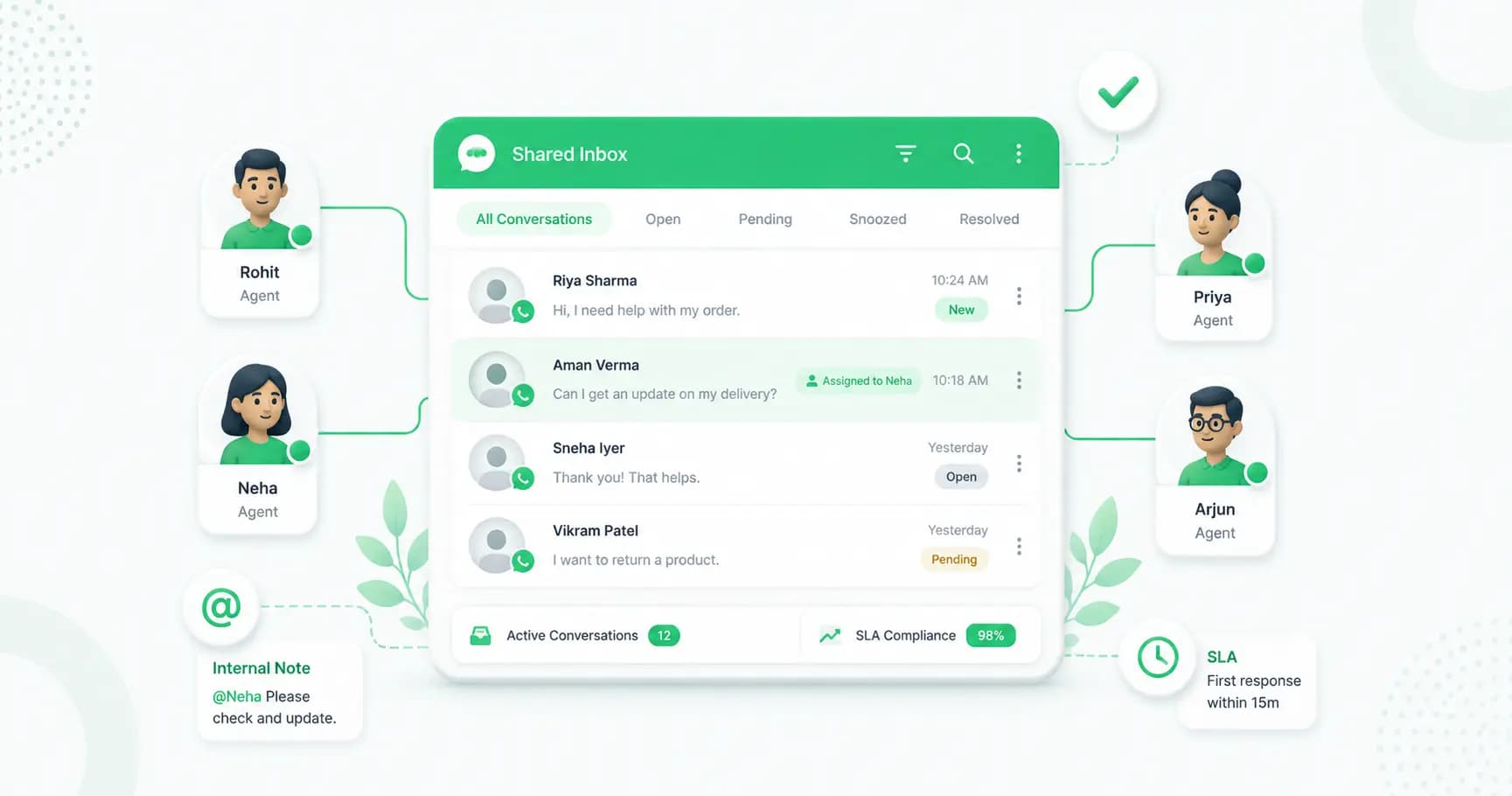
A WhatsApp shared team inbox (also called a team inbox or multi-agent inbox) is a single dashboard where your whole team handles customer conversations on one WhatsApp number. Each agent gets their own login, conversations can be assigned and routed to the right person, and the team can collaborate behind the scenes — all while the customer sees just one familiar WhatsApp number.
It runs on the WhatsApp Business API (through a provider), which is what makes proper multi-agent access, assignment and tracking possible — none of which the free WhatsApp Business app can do.
Why the WhatsApp Business app isn't enough for teams
The free WhatsApp Business app is great for a solo owner. But the moment you add a team, the cracks show:
- No real multi-agent access. Linked devices let a few people view the same number, but there's no way to assign chats, so everyone sees everything and replies collide.
- No assignment or routing. You can't route a billing query to finance and a sales query to sales.
- No internal collaboration. There's no way to leave a private note or ask a colleague for help without the customer seeing it.
- No accountability. You can't see who replied, how fast, or whether anything slipped through.
- No permissions. Everyone has full access — there's no admin-vs-agent control.
As the product saying goes: one WhatsApp app plus five agents equals chaos. A shared inbox replaces that chaos with structure.
Benefits of a WhatsApp shared inbox
Moving your team to a shared inbox delivers:
- Faster response times — conversations land with the right agent automatically.
- No missed or duplicated messages — assignment makes ownership clear.
- Better teamwork — agents collaborate with internal notes instead of forwarding screenshots.
- Accountability — managers see response times, workloads and resolution rates.
- A consistent customer experience — customers message one number and get smooth, coordinated replies.
- Scalability — add agents as you grow without changing your number.
Key features to look for in a WhatsApp team inbox
When choosing a shared inbox, these are the features that genuinely matter:
- Multi-agent login — every agent gets their own secure login, not a shared device.
- Conversation assignment — manual and automatic assignment so chats reach the right person.
- Auto-assignment rules — round-robin, least-busy, or rule-based routing to balance workload.
- Internal notes with @mentions — discuss a query privately without the customer seeing.
- Role-based permissions — admins see everything, agents see their own queue, viewers can audit.
- SLA tracking and escalation — set first-response and resolution targets, and auto-escalate breaches.
- Real-time updates — a live inbox where new messages appear instantly, with no refreshing.
- Activity logs — a record of every action for compliance and audits.
- Labels and canned replies — to organise conversations and respond faster.
How to set up a WhatsApp shared team inbox
Setting up is faster than most teams expect — usually live within an hour or two:
- Choose a provider that offers a shared inbox on the WhatsApp Business API (like Splashify Pro).
- Connect the WhatsApp Business API. Use Meta Embedded Signup to verify your business and number. You'll need a Meta Business Account, a phone number not already registered on WhatsApp, and basic business documents.
- Add your agents. Create a login for each team member.
- Set roles and permissions. Assign admin, agent or viewer access based on each person's role.
- Configure auto-assignment. Choose round-robin, least-busy, or rule-based routing so new chats reach the right agent.
- Add canned replies and SLAs. Set up quick replies for common questions and define your response-time targets.
- Go live. Point your click-to-chat links, website and ads at your WhatsApp number and start handling conversations as a team.
Best practices for multi-agent WhatsApp support
A shared inbox is only as good as how you run it. To get the most from it:
- Define clear roles so every agent knows their queue and responsibilities.
- Use assignment rules rather than letting agents cherry-pick conversations.
- Leave internal notes to hand off context cleanly between agents and shifts.
- Set realistic SLAs and review breaches to improve over time.
- Build a library of canned replies and templates for FAQs to respond faster and stay consistent.
- Deflect repetitive questions to a chatbot so agents focus on conversations that need a human. (A WhatsApp chatbot can handle FAQs, then hand off to an agent when needed.)
- Review agent performance — use response and resolution metrics to spot bottlenecks and coach the team.
How Splashify Pro's WhatsApp shared inbox works
Splashify Pro's shared inbox is built for support teams from 2 to 200, with everything above included rather than locked behind enterprise tiers:
- Multi-agent login — 5 team members on the Growth plan, 15 on Business, with extra seats at ₹750/month and no hard cap.
- Auto-assignment — round-robin, least-busy or rule-based routing.
- Internal notes — @mention teammates to collaborate privately.
- Role-based access — admin, agent and viewer roles.
- SLA tracking and escalation — set targets and auto-escalate to a manager if breached.
- Real-time WebSocket inbox — messages appear instantly, with no polling or refresh.
- Activity logs — every action recorded for compliance and audit.
Setup takes under two hours, it's no-code for most workflows, and there's a REST API if developers want custom integrations.
Frequently asked questions
What is a WhatsApp shared inbox?
It's a single dashboard where multiple agents handle conversations on one WhatsApp number, with their own logins, conversation assignment, internal notes and tracking — running on the WhatsApp Business API. Customers still see one WhatsApp number.
How many agents can share one WhatsApp number?
The free WhatsApp Business app only supports a few linked devices with no real teamwork. On the WhatsApp Business API with a shared inbox, you can add many agents — for example, 5 on Splashify Pro's Growth plan and 15 on Business, scaling to 200+ with add-on seats.
Can multiple people use one WhatsApp Business number?
Yes — but properly only via the WhatsApp Business API and a shared inbox, which gives each person their own login plus assignment and permissions. The consumer app's linked-device feature isn't designed for real multi-agent support.
How do I set up a WhatsApp team inbox?
Choose a provider with a shared inbox, connect the WhatsApp Business API via Meta Embedded Signup, add your agents, set their roles, configure auto-assignment rules and canned replies, then go live. Most teams are running within an hour or two.
What's the difference between the WhatsApp Business app and a shared inbox?
The Business app is free and built for a solo user — no assignment, internal notes, roles or accountability. A shared inbox runs on the API and adds multi-agent logins, routing, collaboration, SLAs and reporting for teams.
Do agents see each other's conversations?
That depends on permissions. With role-based access, admins see everything, agents can be restricted to their own assigned conversations, and viewers can read for auditing without replying.
Can a chatbot work alongside a shared inbox?
Yes. A chatbot can handle common questions automatically and hand off to a human agent in the same inbox when needed — reducing agent workload while keeping the experience seamless.
The bottom line
If more than one person answers your customers on WhatsApp, a shared team inbox isn't a luxury — it's what turns a chaotic, single-app setup into a fast, accountable support operation. With multi-agent logins, smart assignment, internal collaboration and SLA tracking, your team can deliver quick, consistent replies on one WhatsApp number.
Try Splashify Pro's WhatsApp shared inbox free for 14 days → — no credit card, full features, setup in minutes. Or explore the shared inbox.
- #multi-agent whatsapp
- #team inbox
- #whatsapp customer support
- #whatsapp for teams
- #whatsapp shared inbox
- #whatsapp team inbox