WhatsApp Web lets you use WhatsApp on your computer's browser — read and reply to chats with a full keyboard, share files from your PC, and even make calls, all synced with your phone. It's free, official, and takes about ten seconds to set up.
This guide walks through everything: how to log in with the QR code (or without it), how multi-device linking works, what to do when WhatsApp Web isn't working, and how to log out and keep your account secure.
What is WhatsApp Web?
WhatsApp Web is the browser version of WhatsApp that runs at web.whatsapp.com. You link it to your phone once, and your chats appear on your computer. There are three ways to use WhatsApp on a desktop:
- WhatsApp Web — runs in your browser, nothing to install.
- WhatsApp Desktop app — a downloadable app for Windows or Mac with a few extras (like calls with up to 32 people).
- Both work the same way and link to your phone identically.
Since WhatsApp's multi-device update, linked devices connect directly to WhatsApp's servers — so your computer keeps working even when your phone is offline. Your messages, media and calls stay end-to-end encrypted on every device.
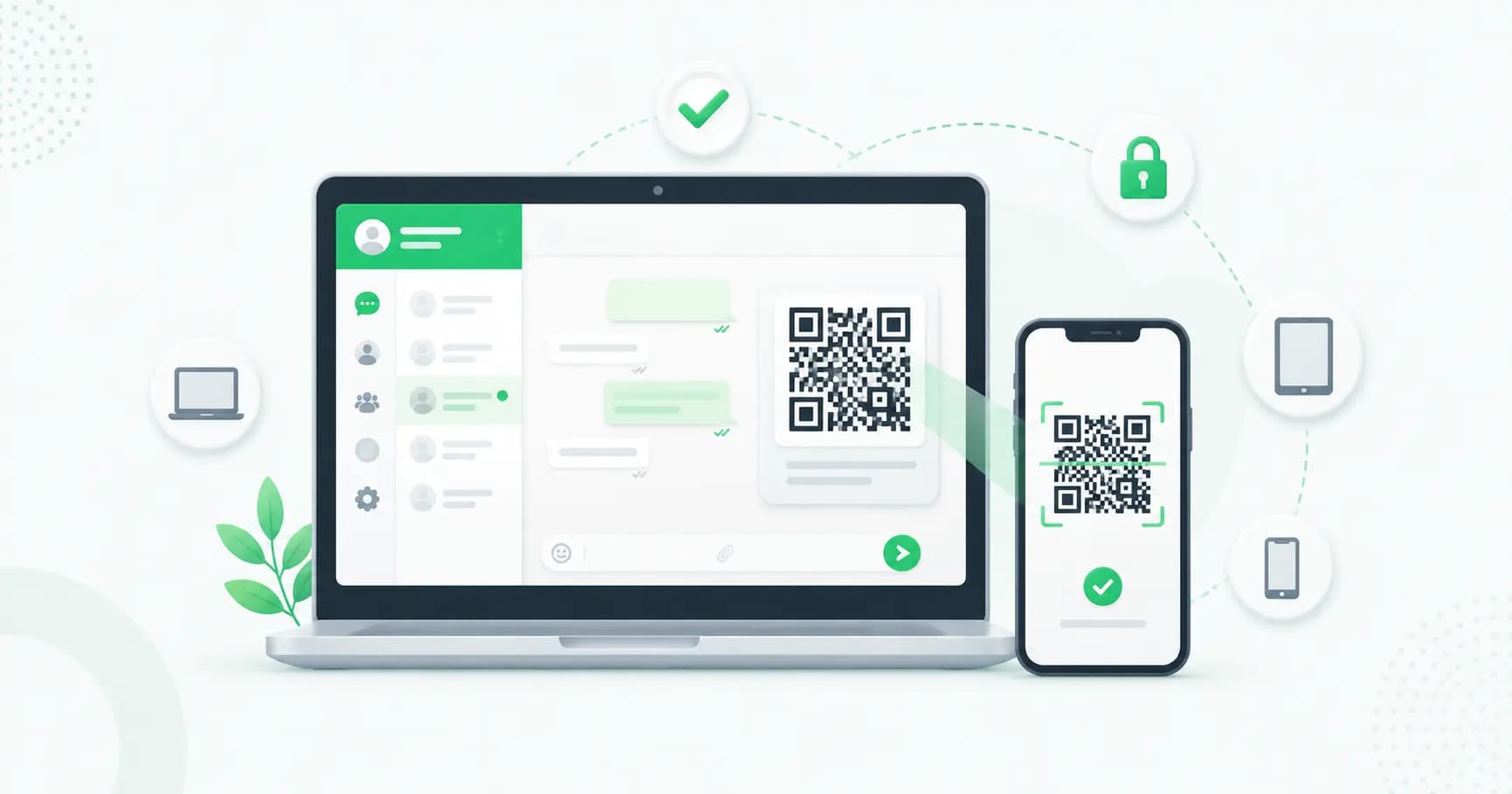
How to log in to WhatsApp Web with the QR code
The classic method takes seconds:
- On your computer, open web.whatsapp.com in a browser (Chrome, Edge, Firefox, Safari or Opera).
- On your phone, open WhatsApp.
- Go to Linked Devices:
- Android: tap the three-dot menu (⋮) → Linked Devices.
- iPhone: tap Settings (bottom right) → Linked Devices.
- Tap Link a Device. (Unlock with your fingerprint/face if prompted.)
- Point your phone camera at the QR code on your computer screen.
That's it — your chats load instantly. Tick "Keep me signed in" to stay logged in on that browser.
How to log in to WhatsApp Web without the QR code
If your camera won't scan or you'd rather not use the QR code, you can link with your phone number instead:
- On web.whatsapp.com, click Link with phone number below the QR code.
- Enter your phone number with the country code.
- WhatsApp Web shows an 8-character one-time code.
- On your phone, go to Linked Devices → Link a Device → Link with phone number instead, and enter that code.
Note: this phone-number method works for linking the Web, Windows and Mac apps. Linking a second phone as a companion device still requires scanning the QR code.
WhatsApp multi-device: how many devices can you link?
You can use your WhatsApp account on up to five devices at once — one primary phone plus four linked devices (browsers, desktop apps, tablets, or secondary phones). This limit applies to both WhatsApp and WhatsApp Business accounts.
A few key things to know:
- Your phone can be offline. Linked devices send and receive on their own, even if your phone has no internet.
- But use your phone at least once every 14 days. If your primary phone goes unused for more than 14 days, all linked devices are automatically logged out for security.
- Your phone is still the anchor. You always need it to register your account and to link new devices.
- "Device limit reached" error? You've hit the four-device cap. Remove a device you no longer use (see logout, below) and try again.
What you can do on WhatsApp Web
WhatsApp Web is no longer just a mirror of your phone. You can:
- Send and receive messages, photos, videos, documents and voice notes.
- Make voice and video calls (the desktop app supports group calls).
- Drag and drop files straight from your computer.
- Search chats, star messages, and manage your status.
- Get desktop notifications so you don't miss messages.
WhatsApp Web not working? Common fixes
If WhatsApp Web won't load, won't scan, or stops syncing, work through these in order:
- Check the internet on both devices. Your computer and (ideally) your phone need a working connection.
- Open your phone if it's been idle. If you haven't used your phone in 14+ days, your linked devices logged out — just re-link.
- Use a supported, updated browser. Try Chrome, Edge, Firefox or Safari. Update it, or test in an incognito/private window.
- QR code won't scan? Refresh the page to load a fresh QR, clean your phone's camera lens, raise your screen brightness, and make sure the lighting is good.
- Messages not syncing? Refresh the tab and confirm both devices are online.
- Clear your browser cache and cookies for web.whatsapp.com, then reload.
- Disable conflicting extensions or VPNs temporarily — some block the connection.
- Update WhatsApp on your phone to the latest version.
- Restart your browser or computer if it's still stuck.
How to log out of WhatsApp Web
You can log out from the computer or remotely from your phone — useful if you forgot to sign out somewhere.
From the computer: click the three-dot menu at the top of your chat list → Log out.
Remotely from your phone (recommended):
- Open WhatsApp → Linked Devices.
- Tap the device you want to remove (it shows its name, location and last-active time).
- Tap Log Out.
To sign out everywhere at once, log out of each device listed under Linked Devices.
WhatsApp Web security tips
WhatsApp Web is safe when you use it carefully — most risks come from leaving sessions open or scanning the wrong QR code.
- Always log out on shared or public computers. A session left open gives the next person full access to your chats.
- Check your Linked Devices regularly. If you see a device or location you don't recognise, log it out immediately and turn on two-step verification.
- Beware the QR-code scam. Scammers try to trick you into scanning a "WhatsApp" QR code that actually links your account to their device. Only ever scan the QR shown on the genuine web.whatsapp.com — never one someone sends or shows you.
- Enable push notifications on your phone so you're alerted whenever a new device links to your account.
Using WhatsApp Web for your business? Read this
WhatsApp Web is great for personal use and tiny teams. But if you're a business handling customer chats, you'll hit its limits fast: it's tied to one number, only a handful of people can share it, there's no automation, no chatbots, no broadcasts, and no way to assign chats or see who replied to whom.
That's where the WhatsApp Business API comes in. With a platform like Splashify Pro, your whole team can handle customer conversations from a single shared team inbox, with chatbots, broadcasts and analytics built in — no more passing one phone around. And to let customers start a chat with you in one tap (without saving your number), create a free WhatsApp click-to-chat link for your website, bio or ads.
Frequently asked questions
Is WhatsApp Web free?
Yes. WhatsApp Web and the desktop app are completely free to use — you just link them to your existing WhatsApp account.
Do I need my phone connected to use WhatsApp Web?
Not constantly. Thanks to multi-device, your linked devices work even when your phone is offline. However, you must use your primary phone at least once every 14 days, or linked devices will be logged out.
How many devices can I link to WhatsApp?
Up to four linked devices plus your primary phone — five in total. This applies to both WhatsApp and WhatsApp Business.
Can I use WhatsApp Web without scanning the QR code?
Yes. Click "Link with phone number" on web.whatsapp.com, enter your number, and you'll get an 8-character code to enter on your phone under Linked Devices.
Why is my WhatsApp Web not working?
The most common causes are a poor internet connection, a phone that's been idle for 14+ days (which logs out linked devices), an unsupported or outdated browser, or a QR code that needs refreshing. Work through the fixes above to resolve it.
Can I use the same WhatsApp account on two phones?
Yes — you can link a second phone as a companion device (max four linked devices). The second phone is linked by scanning the QR code from your primary phone.
Is WhatsApp Web safe?
Yes, your chats stay end-to-end encrypted on every device. The main risks are leaving a session open on a shared computer or scanning a malicious QR code — so log out of public devices and only scan the QR on the real web.whatsapp.com.
How do I log out of WhatsApp Web remotely?
Open WhatsApp on your phone → Linked Devices → tap the device → Log Out. This signs that computer out instantly, even if you're not near it.
Wrapping up
WhatsApp Web turns your computer into a full WhatsApp workstation in seconds — log in with a QR code or your phone number, link up to four devices, and remember to log out of any shared computer. Keep an eye on your Linked Devices list, and you'll have a fast, secure way to chat from any screen.
- #link whatsapp device
- #whatsapp multi-device
- #whatsapp web
- #whatsapp web login
- #whatsapp web not working
- #whatsapp web qr code